10.7. Managing Staging Repositories in Nexus

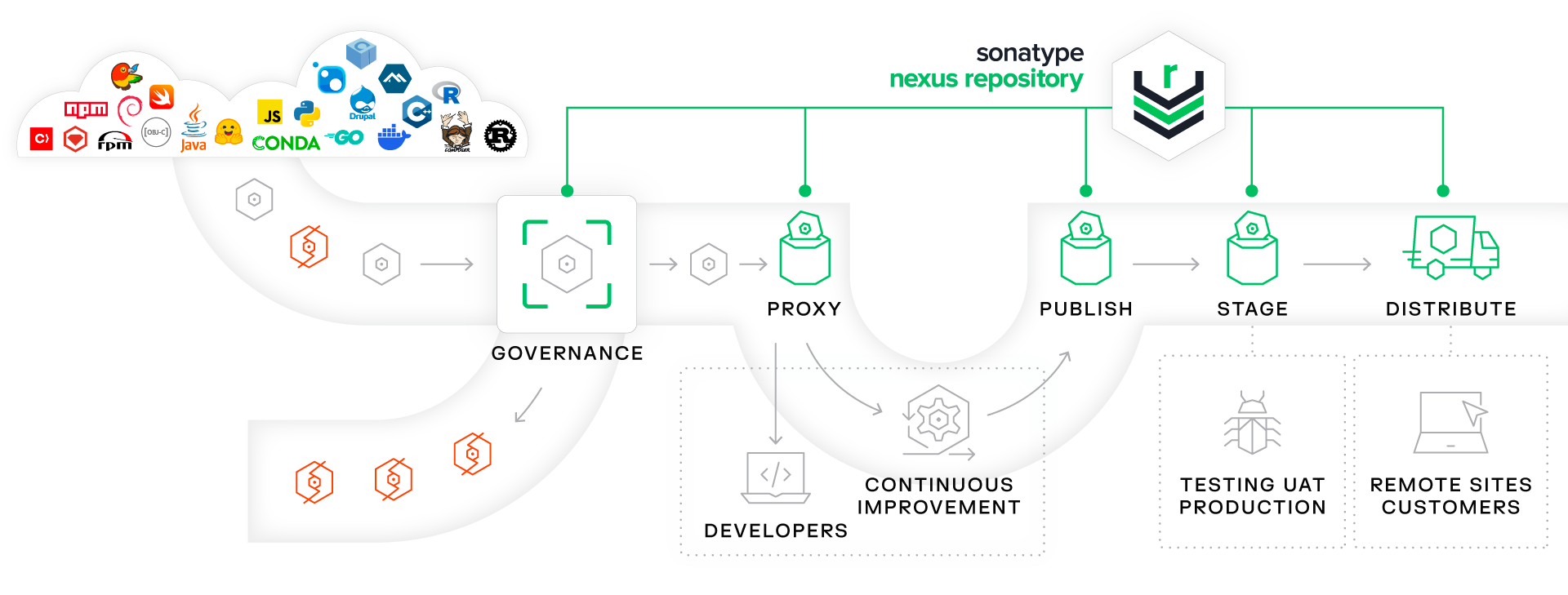
Once you complete the process outlined in Section 10.4, “Performing a Staged Deployment with Maven”, you will then have an automatically generated Staging Repository. In this section, you will walk through the process of managing staging repositories. Once a staging repository has been created, there are two steps in the lifecycle of a staging repository. Once you have deployed a set of related artifacts, you must "Close" the repository moving it from an "Open" to a "Closed" state. Once a repository is in the "Closed" state it is added to a Repository Group and is made available for testing purposes. Once testing is completed, a Nexus administrator can either Promote or Drop a Closed repository. If the repository is Dropped, the repository is discarded and removed from the Repository Group. If the repository is Promoted, the Nexus administrator can select a Hosted repository and publish the contents of the temporary staging repository to a Hosted repository.

10.7.1. Closing an Open Repository

Once you deploy an artifact that triggers a staging profile, Nexus Staging Suite will create a repository that contains the artifacts you deployed. A separate staging repository is created for every combination of User ID, IP Address, and User Agent. This means that you can perform more than one deployment to a single Staging Repository as long as you perform the deployment from the same IP, with the same deployment user, and the same installation of Maven. You can perform multiple deployments to an "Open" staging repository, to see a list of these temporary "Open" Staging repositories, select "Staging" from the Nexus menu and click on the appropriate Staging Profile to browse a list of staging repositories which correspond to a staging profile.

Listing Repositories Associated with a Staging Profile

Figure 10.10. Listing Repositories Associated with a Staging Profile


Once you are ready to start testing the staging repository, you will need to transition the staging repository from the "Open" state to the "Closed" state. This will close the temporary staging repository to more deployments. To close a repository, right-click on the repository in the Staging Repositories panel and select "Close". This will bring up the following dialog for a staging deployer to describe the contents of a staging repository. This description field can be used to pass essential information to the person that needs to test a deployment. In Figure 10.11, “Confirmation and Description Dialog for Closing a Staging Repository”, the description field is used to describe the release for the user that needs to certify and promote a release.

Confirmation and Description Dialog for Closing a Staging Repository

Figure 10.11. Confirmation and Description Dialog for Closing a Staging Repository


Confirming this state transition will close the repository and add the repository to a repository group. Once a repository has been closed, it will be listed as "Closed" in the Profile's Repositories tab.

Closed Repository After Selecting Finish

Figure 10.12. Closed Repository After Selecting Finish


10.7.2. Using the Staging Repository

Once the Staging Repository has been closed, it will automatically be added to the Repository Group that was specified in the Staging Profile. Figure 10.13, “Staging Repository Added to the End of a Repository Group” shows an instance of a staging repository appended to the end of a group named "Public Repositories". This has the effect of making the staged artifacts available to everyone who is referencing this public group. Developers who are referencing this public repository group can now test and interact with the staged artifacts as if they were published to a Hosted repository. While the artifacts are made available in a repository group, the fact that they are held in a temporary staging directory gives the administrator the option of promoting this set of artifacts to a Hosted repository or dropping this temporary staging repository if there are problems discovered during the testing and certification process for a release.

Staging Repository Added to the End of a Repository Group

Figure 10.13. Staging Repository Added to the End of a Repository Group


Once a staging repository is closed, you can also browse and search the repository. To view Staging Repositories, click on Browse Repositories and then select Nexus Managed Repositories as shown in Figure 10.14, “Viewing Nexus Managed Repositories”.

Viewing Nexus Managed Repositories

Figure 10.14. Viewing Nexus Managed Repositories


Once you've selected Nexus Managed Repositories, Nexus will then show you all of the repositories that have been created by the Nexus Staging Suite. You can select and browse this temporary Staging Repository as you would any other repository.

Browsing a Staging Repository

Figure 10.15. Browsing a Staging Repository


You can also browse the contents of a staging repository from the Staging panel. Click on Staging in the Enterprise menu, click on a profile and you will then see a list of staging repository instances. Clicking on one of these instances will bring up another way to browse the contents of a particular staging repository.

Browsing Repository via Staging Profiles

Figure 10.16. Browsing Repository via Staging Profiles


10.7.3. Promoting a Repository

Once you are finished testing or certifying that the contents of a Staging Repository are correct, you are ready to either Promote or Drop the Staging Repository. Dropping the Staging Repository will delete the temporary staging repository from Nexus and remove any reference to this repository from the groups it was associated with. Promoting the Staging Repository allows you to publish the contents of this temporary repository to a Hosted repository.

To promote a Staging Repository select Staging from the Nexus menu and then click on the appropriate Staging Profile. This will display a list of Staging Repositories associated with that Staging Profile. Find the repository you wish to promote and right-click on the repository row, this should display the context menu shown in Figure 10.17, “Promoting a Staging Repository”.

Promoting a Staging Repository

Figure 10.17. Promoting a Staging Repository


Once you select Promote, the Nexus Staging Suite will ask you to choose a destination repository. You can choose any Hosted repository.

Selecting the Destination Repository for Staged Repository Promotion

Figure 10.18. Selecting the Destination Repository for Staged Repository Promotion


Selecting a repository and clicking on Promote will publish the contents of a Staging Repository to a Hosted repository and delete the Staging Repository from Nexus.

Confirmation Dialog for Repository Promotion

Figure 10.19. Confirmation Dialog for Repository Promotion