Repository Management with Nexus
6.2. Managing Repositories

6.2. Managing Repositories

To manage Nexus repositories, log in as the administrative user and click on Repositories in the Views/Repositories menu in the left-hand navigation menu.

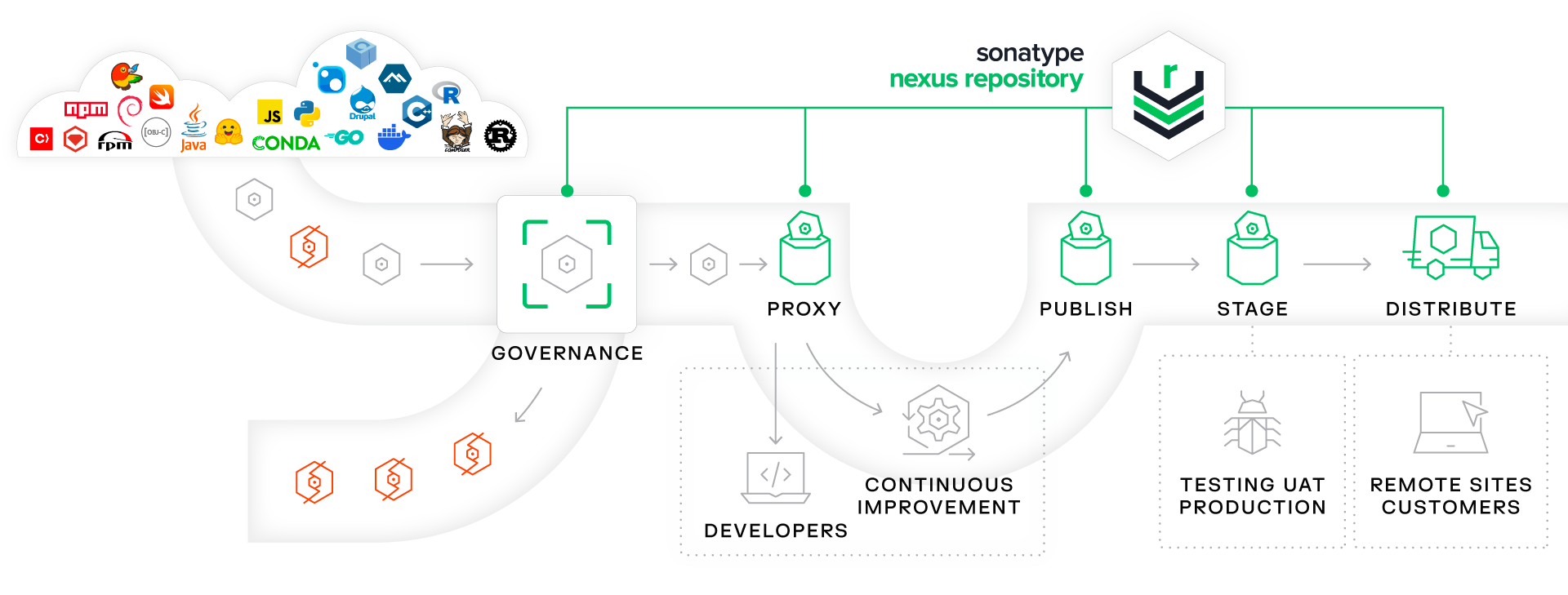
Nexus provides for three different kinds of repositories - Proxy Repositories, Hosted Repositories and Virtual Repositories.

6.2.1. Proxy Repository

A proxy repository is a proxy of a remote repository. By default, Nexus ships with the following configured proxy repositories:

Apache Snapshots
This repository contains snapshot releases from the Apache Software Foundation http://people.apache.org/repo/m2-snapshot-repository
Codehaus Snapshots
This repository contains snapshot released from Codehaus http://snapshots.repository.codehaus.org/
Maven Central Repository
This is the central repository (for releases). http://repo1.maven.org/maven2/

6.2.2. Hosted Repository

A hosted repository is a repository which is hosted by Nexus. Maven ships with the following configured hosted repositories:

3rd Party
This hosted repository should be used for third-party dependencies not available in the public Maven repositories. Examples of these dependencies could be commercial, proprietary libraries such as an Oracle JDBC driver that may be referenced by your organization.
Releases
This hosted repository is where your organization will publish internal releases.
Snapshots
This hosted repository is where your organization will publish internal snapshots.

6.2.3. Virtual Repository

This serves as an adaptor to and from different types of repositories. Currently Nexus supports conversion to and from Maven 1 repositories and Maven 2 repositories and from Maven 2 to NuGet repositories.

6.2.4. Configuring Repositories

The Repositories window displayed in Figure 6.13, “Repository Configuration Screen for a Proxy Repository” allows you to create, update and delete different repositories with the Add, Delete and Trash button. Use the Refresh button to update the displayed list of repositories and repository groups.

figs/web/repository-manager_repository-config.png

Figure 6.13. Repository Configuration Screen for a Proxy Repository


figs/web/repository-manager_repository-config-2.png

Figure 6.14. Repository Configuration Screen for a Proxy Repository


figs/web/repository-manager_repository-config-3.png

Figure 6.15. Proxy Configuration Access Settings for a Hosted Repository


Figure 6.13, “Repository Configuration Screen for a Proxy Repository” and Figure 6.14, “Repository Configuration Screen for a Proxy Repository” show the Repository configuration screen for a Proxy repository in Nexus. From this screen, you can manage the settings for proxying an external repository:

Repository ID
The repository ID is the identifier which will be used in the Nexus URL. For example, the central proxy repository has an ID of "central", this means that maven can access the repository directly at http://localhost:8081/nexus/content/repositories/central. The Repository ID must be unique in a given Nexus installation. ID is required.
Repository Name
The display name for a repository. Name is required.
Repository Type
The type of repository (proxy, hosted, or virtual). You can’t change the type of a repository, it is selected when you create a repository.
Provider and Format
Provider and Format define in what format Nexus exposes the repository to external tools. Supported formats are Maven 1, Maven 2, NuGet, OBR, P2 and P2 Update Site.
Repository Policy
If a proxy repository has a policy of release than it will only access released versions from the remote repository. If a proxy repository has a policy of snapshot, it will download snapshots from the remote repository.
Default Storage Location
Not editable, shown for reference. This is the default storage location for the local cached contents of the repository.
Override Storage Location
You can choose to override the storage location for a specific repository. You would do this if you were concerned about storage and wanted to put the contents of a specific repository (such as central) in a different location.
Remote Repository Access

This section tells Nexus where to look for and how to interact with the remote Maven repository being proxied.

Remote Storage Location
This is the URL of the remote Maven repository.
Download Remote Indexes
This field controls the downloading of the remote indexes. Currently only central has an index at http://repo1.maven.org/maven2/.index. If enabled, Nexus will download the index and use that for its searches as well as serve that up to any clients which ask for the index (like m2eclipse). The default for new proxy repositories is enabled, but all of the default repositories included in Nexus have this option disabled. To change this setting for one of the proxy repositories that ship with Nexus, change the option, save the repository, and then re-index the repository. Once this is done, artifact search will return every artifact available on the Maven Central repository.
Auto Blocking Enabled
If Auto blocking active is set to true, Nexus will automatically block a proxy repository if the remote repository becomes unavailable. While a proxy repository is blocked, artifacts will still be served to clients from a local cache, but Nexus will not attempt to locate an artifact in a remote repository. Nexus will periodically retest the remote repository and unblock the repository once it becomes available.
File Content Validation
If set to true, Nexus will perform a lightweight check on the content of downloaded files. This will prevent invalid content to be stored and proxied by Nexus, which otherwise can happen in cases where the remote repository (or some proxy between Nexus and the remote repository) for example returns an HTML page instead of the requested file.
Checksum Policy

Sets the checksum policy for a remote repository. This option is set to Warn by default. The possible values of this setting are:

  • Ignore - Ignore the checksums entirely
  • Warn - Print a warning in the log if a checksum is not correct
  • StrictIfExists - Refuse to cache an artifact if the calculated checksum is inconsistent with a checksum in the repository. Only perform this check if the checksum file is present.
  • Strict - Refuse to cache an artifact if the calculated checksum is inconsistent or if there is no checksum for an artifact.
Authentication
This section allows you to set a Username, Password, NT LAN Host, and NT Lan Manager Domain for a remote repository.
Access Settings

This section configures access settings for a repository.

Deployment Policy
This setting controls how a Hosted repository allows or disallows artifact deployment. If this policy is set to "Read Only", no deployment is allowed. If this policy is set to "Disable Redeploy", a client can only deploy a particular artifact once and any attempt to redeploy an artifact will result in an error. If this policy is set to "Allow Redeploy", clients can deploy artifacts to this repository and overwrite the same artifact in subsequent deployments. This option is visible for Hosted repositories as shown in Figure 6.15, “Proxy Configuration Access Settings for a Hosted Repository”.
Allow File Browsing
When set to true, users can browse the contents of the repository with a web browser.
Include in Search
When set to true, this repository is search when you perform an Artifact Search in Nexus. If this setting is false, the contents of the repository are excluded from a search.
Publish URL
If this property is set to false, the repository will not be published on a URL, and you will not be able to access this repository remotely. You would set this configuration property to false if you want to prevent clients for connecting to this repository directly.
Expiration Settings

Nexus maintains a local cache of artifacts and metadata, you can configure expiration parameters for a proxy repository. The expiration settings are:

Not Found Cache TTL
If Nexus fails to locate an artifact, it will cache this result for a given number of minutes. In other words, if Nexus can’t find an artifact in a remote repository, it will not repeated attempt to resolve this artifact until the Not Found Cache TTL time has been exceeded. The default for this setting is 1440 minutes (or 24 hours).
Artifact Max Age
Tells Nexus when that maximum age of an artifact is before it retrieves a new version from the remote repository. The default for this setting is -1 for a repository with a Release policy and 1440 for a repository with Snapshot policy.
Metadata Max Age
Nexus retrieves metadata from the remote repository. It will only retrieve updates to metadata after the Metadata Max Age has been exceeded. The default value for this setting is 1440 minutes (or 24 hours).
HTTP Request Settings
This section lets you change the properties of the HTTP request to the remote repository. In this section you can configure the User Agent of the request, add parameters to a request, and set the timeout and retry behaviour. This section refers to the HTTP request made from Nexus to the remote Maven repository being proxied.
Override HTTP Proxy Settings
This section lets you configure the HTTP Proxy for the request from Nexus to the remote repository. You can configure a proxy host and port plus an authentication settings you need tell Nexus to use an HTTP Proxy for all requests to a remote repository.

6.2.5. Selecting Mirrors for Proxy Repositories

Nexus also allows you to select which mirrors Nexus will consult for a particular Proxy repository. Clicking on the Mirrors tab will show the figure shown in Figure 6.16, “Configuring Mirrors for Proxy Repositories”.

figs/web/repository-manager_config-mirrors.png

Figure 6.16. Configuring Mirrors for Proxy Repositories


To configure a mirror repository, click on the Mirror URL drop-down and select a mirror for the Proxy repository. Click the Add button, and Nexus will then be configured to download artifacts from the selected mirror. Nexus will always download checksums and metadata from the original (or Canonical) URL for a proxy repository. For example, if Nexus is going to download an artifact, it will retrieve the MD5 checksum from the original Maven Central repository and then retrieve the artifact from the selected mirror.

6.2.6. Adding a Mirror Entry for a Hosted Repository

If you are logged in as a user with Administrative privilege, there will be a Mirrors tab available when you are viewing a Hosted repository, clicking on this Mirrors tab will show the form shown in Figure 6.16, “Configuring Mirrors for Proxy Repositories”. This tab contains a list of mirror URLs for this hosted repository. If there are other sites which mirror the contents of this hosted repository, this tab allows you to populate the repository mirror metadata with those URLs.

This repository mirror metadata can then be consumed by other systems that interact with your hosted repository. For example, if you have a release repository which is used by your customers or by the general public, if one of people consuming your Hosted repository is also running a Nexus, they can configure a Proxy repository that targets your Hosted repository and they can use the mirror metadata to configure their instance of Nexus to consume artifacts from mirrors of your Hosted repository.

6.2.7. Viewing Repository Summary Panel

The Repository Summary panel can be loaded by selecting a Hosted, Proxy, or Virtual repository and then clicking on the Summary tab. When viewing the Summary tab of a Hosted repository, as shown in Figure 6.17, “Repository Summary Panel for a Hosted Repository”, you will also see the Distribution Management settings which can be used to configure Maven to publish artifacts to a Hosted repository.

figs/web/repository-manager_summary-hosted.png

Figure 6.17. Repository Summary Panel for a Hosted Repository


The Repository Summary panel for a Proxy repository, as shown in Figure 6.18, “Repository Summary Panel for a Proxy Repository”, contains all of the repository identifiers and configuration in addition to the size of the local storage for the proxy repository and the URL of the remote repository.

figs/web/repository-manager_summary-proxy.png

Figure 6.18. Repository Summary Panel for a Proxy Repository


The Repository Summary panel for a Virtual repository, as shown in Figure 6.19, “Repository Summary Panel for a Virtual Repository”, displays repository identifiers and the size of the Virtual repository on disk.

figs/web/repository-manager_summary-virtual.png

Figure 6.19. Repository Summary Panel for a Virtual Repository


6.2.8. Auto Block/Unblock of Remote Repositories

What happens when Nexus is unable to reach a remote repository? If you’ve defined a proxy repository, and the remote repository is unavailable Nexus will now automatically block the remote repository. Once a repository has been auto-blocked, Nexus will then periodically retest the remote repository and unblock the repository once it becomes available. You can control this behaviour by changing the Auto-blocking Active setting under the Remote Repository Access section of the proxy repository configuration as shown in the following figure:

figs/web/configuring_auto-block.png

Figure 6.20. Configuring Remote Repository Auto Block/Unblock


Sonatype Promotion Subscribe via RSS